
Once logged in the user will access the “Home” menu where the user can see four sections:
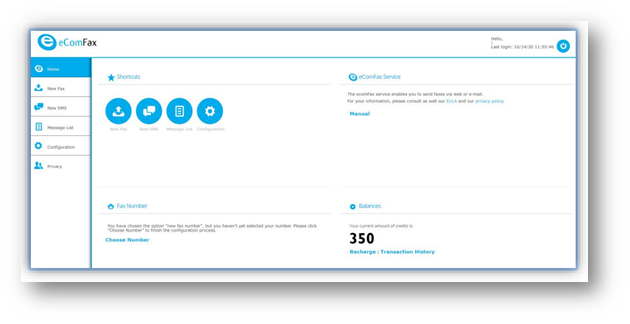
In the upper-left corner (Shortcuts) the user may access some quick options such as Sending a new fax or SMS, accessing the message list or configuration section.
In the upper-right corner (eComFax Service) user may access and read the End-User License Agreement (EULA), privacy policy note, and eComFax® User Guide.
In the bottom-left corner (Fax Number) the user will see eComFax® Account Information.
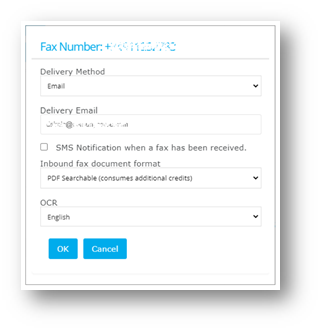
Fax Number is the fax number associated with the user’s own eComFax® account. Very much like the fax number, an email address is also associated with the user’s eComFax® account. This means that any fax sent to the associated fax number will be received by the user’s associated email address (Delivery Email).
The Delivery Email is the designated email address to receive inbound faxes. This is the same email address used when signing up for the service and cannot be modified on this page directly but by opening a ticket with eComFax helpdesk at helpdesk@ecomfax.com. You can however add additional email addresses to receive by typing them in this field, separated by a semi-colon and no spaces. (with a maximum of 1024 characters).
It is also possible to add additional email addresses that can be used for receiving inbound faxes sent to the associated Fax Number. To add more recipients for incoming faxes go to <Configuration_Delivery> and click on the “+” icon.
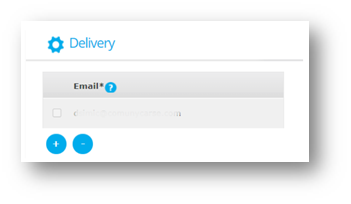
Please note that a maximum of three additional email addresses can be added within the same account / Fax line. Those email addresses may also be used to send faxes from. For our Enterprise subscriptions this is the same for email domains.
Any changes in terms of delivery method can be changed under the Delivery Method (Default being ‘by email’). Other delivery methods are Web Services, PCI Fax, Secure Fax, Email + Faxback and FTP. The latter allows a interfacing into other third party systems companies may use for archiving documents. (Such as EMR systems for healthcare providers).
In this section, the user may also check the box to receive an SMS notification when a fax has been received, define the inbound fax document format (eg. PDF, TIFF, or searchable PDF), and specify the default language for Optical Character Recognition (OCR) which can be used for indexing purposes as eComFax® allows a fax format by searchable content.
In the bottom-right corner (Balances) information on the user’s account “Balance” status is available. This section shows the available number of credits in the user’s account at any given time. These credits are used for sending and receiving. Users may also use credits for document processing or to use special features such as OCR, CertiFax®, SecureFax® or PCI Fax®. Users may also use credits to increase the archive/storage period.
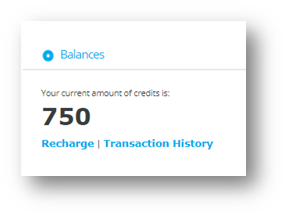
The “Buy More Credits” option may be selected, if there is a need to increase the number of credits available. Credits may be purchased in packs of 100, 500 and 1,000 for SOHO and SMB subscriptions and 5,000 and 50,000 for Enterprise subscriptions and have a 1-year validity after the date of purchase. For more information on pricing please visit the eComFax® Cloud Marketplace listing page or your sales agent.