
Here, we will show you how to send a SecureFax® by both using the platform and by email.
For information on how to receive faxes by SecureFax® and there notifications click here.
What is SecureFax®?
SecureFAX® can be useful for both, sending or receiving. In either case, the user can ensure security and proof of delivery.
Why choose SecureFax®?
There are several reasons why SecureFAX® may be used. One is to protect the information and make it available only for the intended recipients. SecureFAX® allows you to send information securely and track the receipt of financial, HR, legal, and medical records.
SecureFAX® was built to keep important data safe from cybercriminals, eavesdroppers and other threats in the modern digital world. SecureFAX® was designed by security experts and uses best-in-class encryption.
Another reason to use SecureFAX® is proof of delivery and guarantee that a document has reached a specific destination. Email administrators can sometimes disable delivery slips to avoid email spamming (also case for specific email clients, such as Outlook), so it is impossible to have proof that the document reached the destination or has been viewed by the recipient on his/her computer screen.
A common example where users can benefit from using SecureFAX® is for sending invoices to ensure they have been received by their customers which can help to reduce DSO.
When sending a document with this method, the system ensures that a message was delivered to the destination through a secure channel (TLS email server must be enabled) and that a message with a hyperlink was sent. The recipient then has to open the hyperlink and authenticate to view the document. If the customer is not registered on the platform, they will have to validate access for the first time using two-factor authentication procedure (an SMS code will be sent to their mobile phone). When the message is viewed on the recipients screen, a message notification is sent back to the sender with information that the message was opened and viewed.
SecureFAX® is a method used to send document(s) and to certify the following:
- The message can only be transmitted through a TLS connection;
- Whether or not the document was opened;
- To ensure that the document reached the destination and was opened even, if the recipient did not have the necessary client to view the type/format of the document;
- No interception or sniffing of the message was
Even if sender’s customer has no MS Excel, the sender may send an invoice spreadsheet and get a confirmation that the fax was viewed on the destination screen. SecureFAX® documents are addressed to an email address vs a fax line and eComFax® server will only accept jobs coming from domains that have enabled TLS secure transmission in order to maintain security standards. A SecureFAX® can be sent to any destination email address.
SecureFAX® also allows the recall of a document sent by mistake. In this case, the system will delete the document that was sent as long as it has not yet been viewed by the destination recipient.
To send via the Web Interface
Once logged in and on the home screen, choose the “New Fax” icon/tab.
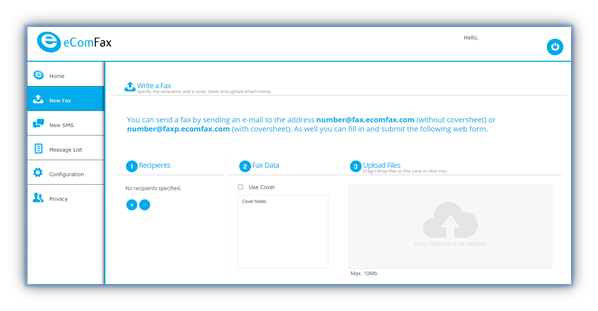
Subsequently, choose the addressee/recipient or create a new recipient by clicking on the “+” symbol. When choosing a type of fax to-be-sent, please note that for Normal and CertiFAX® a fax number should be specified, while an email address is specified for SecureFAX® and PCIFAX®.
After that, choose if the document has a cover page or not, input the text for the cover page and attach the file(s) to-be-sent.
Sending via Email
In order to send a SecureFAX® via email, please input the email of the recipient in the following format:
In the “To:” field, put the destination email address but replace the “@“ for a “+” symbol followed by “@securefax.ecomfax.com” (to send without a cover page) or “@securefaxp.ecomfax.com” (to send with a cover page.) For instance:
Peter.drove+company.com@securefax.ecomfax.com
or
Peter.drove+company.com@securefaxp.ecomfax.com
Start the SUBJECT with the PIN Code and then write the subject. The subject will be included on the cover notes. Do not leave a blank space between the PIN and the first word of the subject. (please note that PIN code is not needed in case of DKIM validation or if you are in the Enterprise subscription).
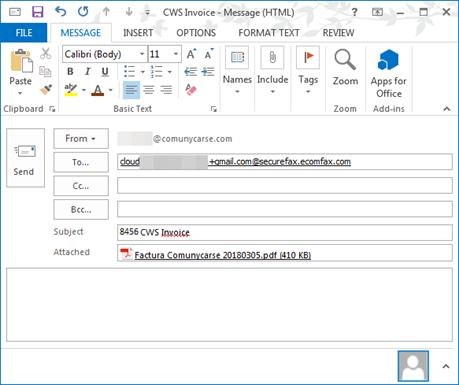
If a SecureFAX® is sent without any attachments and cover page, the user will receive an error message.